Setting Up Your First Godot Project
Step-by-step walkthrough of downloading Godot, creating a new project, and understanding the editor interface.
Learn how Godot’s node-based architecture works and why scenes are the foundation of every game you’ll build with this engine.
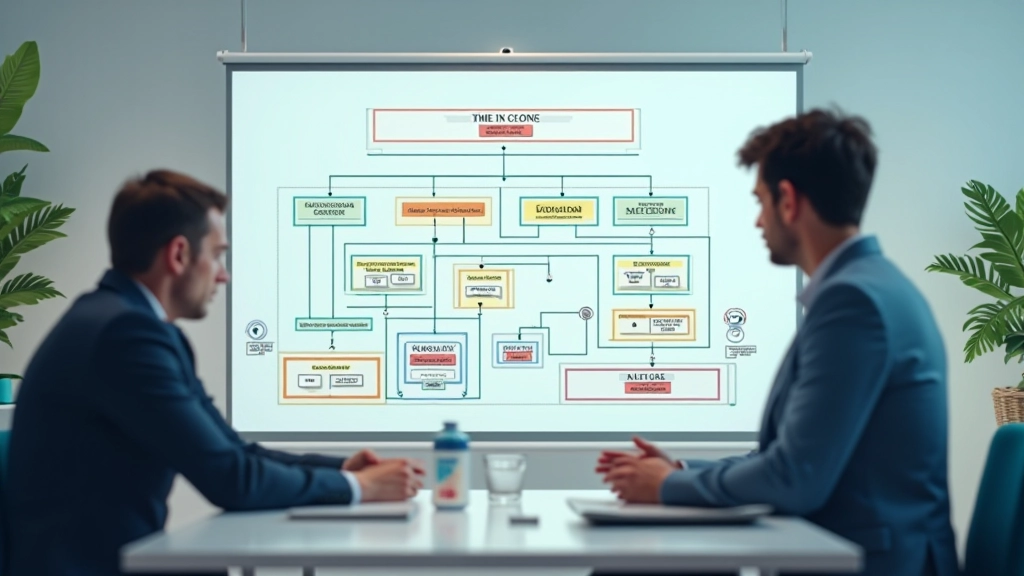
In Godot, everything you create is built from nodes. A node is a basic building block — think of it like a LEGO piece that does one specific thing. A sprite displays an image. A physics body handles collisions. A timer counts down seconds. When you combine nodes together in a specific arrangement, you create a scene.
Scenes aren’t just collections of nodes either. They’re reusable templates. You’ll build a scene for your player character, another for enemies, another for the menu. Then you can drop these scenes into your game world whenever you need them. It’s like having blueprint templates you can instantiate over and over.
This node-based architecture is what makes Godot different from engines like Unity. Instead of working with prefabs and GameObjects with complex inheritance, you’re working with a simpler, more visual hierarchy. You’ll see exactly how everything connects.
Every scene has a root node. This is the parent node that contains everything else in that scene. Below the root, you can add child nodes, and those children can have their own children. It’s a tree structure.
Here’s why this matters: when you move the parent, all the children move with it. If you have a player character (parent node) with a sword sprite (child node) attached to their hand, rotating the player automatically rotates the sword. The parent controls the transformation for all its descendants.
Different node types exist for different purposes. Node2D is the base for 2D games. Control nodes handle UI elements like buttons and text. PhysicsBody nodes interact with Godot’s physics engine. You’ll pick the right node type based on what you’re building.

This guide provides educational information about Godot engine architecture and concepts. The node and scene systems work differently depending on your project’s complexity and design choices. Refer to the official Godot documentation for the most current technical specifications and best practices.
A scene is essentially a saved node tree with a specific structure and configuration. When you build your player character scene, you’re organizing nodes in a way that makes sense — a body sprite at the root, with collision shapes as children, maybe animation nodes attached too.
The beautiful part? Once you’ve built and tested this scene, you can instantiate it dozens of times in your game world. Every instance is independent — moving one player doesn’t affect the others. But they all share the same scene structure, so updating the template updates all instances.
You’re also not locked into rigid hierarchies. Scenes can be nested inside other scenes. Your main game scene might contain enemy scenes, which themselves contain animation nodes. This composability is incredibly powerful.
When you’re starting a new scene, you’ll need to pick the right root node type. Here’s what you’ll typically use:
Start with CharacterBody2D. It’s built specifically for characters that need movement, collision detection, and interaction with physics. You’ll attach sprites, collision shapes, and animation nodes as children.
Use StaticBody2D for things that don’t move — walls, platforms, terrain. They collide with other bodies but won’t move themselves. Perfect for level geometry and environmental objects.
Control nodes are your foundation for menus, HUD elements, and text displays. They handle input, positioning within the screen, and respond to game events. You’ll nest button and label nodes inside control containers.
Area2D nodes detect when other bodies enter specific regions. Use these for trigger zones, damage areas, item pickups, or anything that needs collision detection without physical interaction.
Here’s how you’ll actually build scenes. You’ll start with a root node — let’s say CharacterBody2D for your player. Then you’ll add child nodes: a Sprite2D to display the character image, a CollisionShape2D to define the collision boundary, and an AnimationPlayer to handle animations.
In the Scene tree panel on the left side of the editor, you’ll see this hierarchy displayed visually. Indentation shows parent-child relationships. You can drag nodes around to reorganize the structure. If you mess up, you can undo. This visual organization is one of Godot’s strengths.
Once your scene looks right, you’ll save it as a .tscn file. Now it’s reusable. Drag it into your main game scene, and you’ve got an instance. Need five copies? Drag it five times. Each one is independent but uses the same scene structure.
Understanding nodes and scenes is fundamental to working with Godot. You’ve learned that nodes are individual building blocks, scenes are organized collections of nodes, and this hierarchy creates powerful reusability. The node-based approach is actually simpler than you might think once you see it in action.
The next step is getting hands-on. Open Godot, create a new scene, and experiment. Add different node types, see how they behave, try nesting them. You’ll develop an intuitive understanding much faster by doing than by reading. This architecture becomes second nature quickly.
Once you’re comfortable with nodes and scenes, you’ll be ready to write scripts that control them, add physics interactions, and build actual gameplay. But this foundation matters. It’s worth taking the time to understand it properly.